The iPhone 5c clear hard case has been released in our ProFilmet ROES! You can locate it here in our software: Standard Catalog/Gifts & Novelties/Electronic Accessories.




Order any 11x14 and get one free*, including metallic paper. Just order two 11x14’s and put promo code BOGO1114 in the order review. Your discount will be applied when your order arrives at the lab.
*Lesser value print will be free. There is no limit per order, but you must order in pairs for the discount to apply.
Filmet will be closed Monday, May 26th.
We wish you all a safe and happy Memorial Day!
|
Through the month of May, order any 11x14 and get one free*, including metallic paper. Just order two 11x14’s and put promo code BOGO1114 in the order review. Your discount will be applied when your order arrives at the lab.
*Lesser value print will be free. There is no limit per order, but you must order in pairs for the discount to apply.

For the first time, you can choose which front to pair with which back! You have the flexibility to adjust to your individual client's needs, whether you're ordering Senior Announcements, Save the Date, or Christmas Cards.

Just Drag and Drop your base layout into the product area for the front and the back of your card.
Strip it down or dress it up... it’s YOUR card.

In ProFilmet ROES: Standard Catalog > Cards > Press Printed Greeting Cards > Graduation -or- Anytime > 5x7 Flat

The standard tools for drawing and moving nodes are now always available in the upper left corner of your center work area.


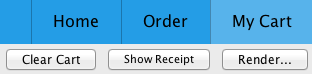
You can RENDER your cards from the Cart in ROES to show your clients samples!
Need ideas? Download the Sample Sheet. It contains all the tips above with usage ideas on the back.
Thanks to Laura Ruppersberger Photography, Picturiffic Studios and Premier Photo Works for the use of their senior photos.